Welcome every guest
Give guests a beautiful, readable menu on the phone they already use. Start with browsing, then add ordering when it suits your service.
Explore this feature
A little less admin. A lot more hospitality.
Your menus, QR codes and guest orders, together in one workspace. Made for the restaurants that make people feel at home.

 Fresh from the kitchen

On your DineBud menu
On your DineBud menu
On your DineBud menu
On your DineBud menu
On your DineBud menu
Built around your restaurant
Keep the small details in order, so your team can focus on a great service.
Give guests a beautiful, readable menu on the phone they already use. Start with browsing, then add ordering when it suits your service.
Explore this featurePhotos, prices, additions and nutrition. Give guests the information your team has checked, all next to the dish.
Explore this featureReview incoming orders and guest notes. Keep the status current from the first tap to the last plate.
Explore this featureFind your kind of service
Meet The Olive Room, our fictional neighborhood bistro. Try each live demo and find the setup that fits your restaurant.
01 / QR menu only
Your dishes, beautifully presented. Guests scan, explore photos and find their next favorite. Your team takes the order.
Live demo · Fictional restaurant · USD sample prices
02 / QR ordering
Let guests choose dishes, add extras and send an order from their phone. Your team follows each order through service.
Demo orders only. Guests pay at the restaurant.
03 / Tables & POS
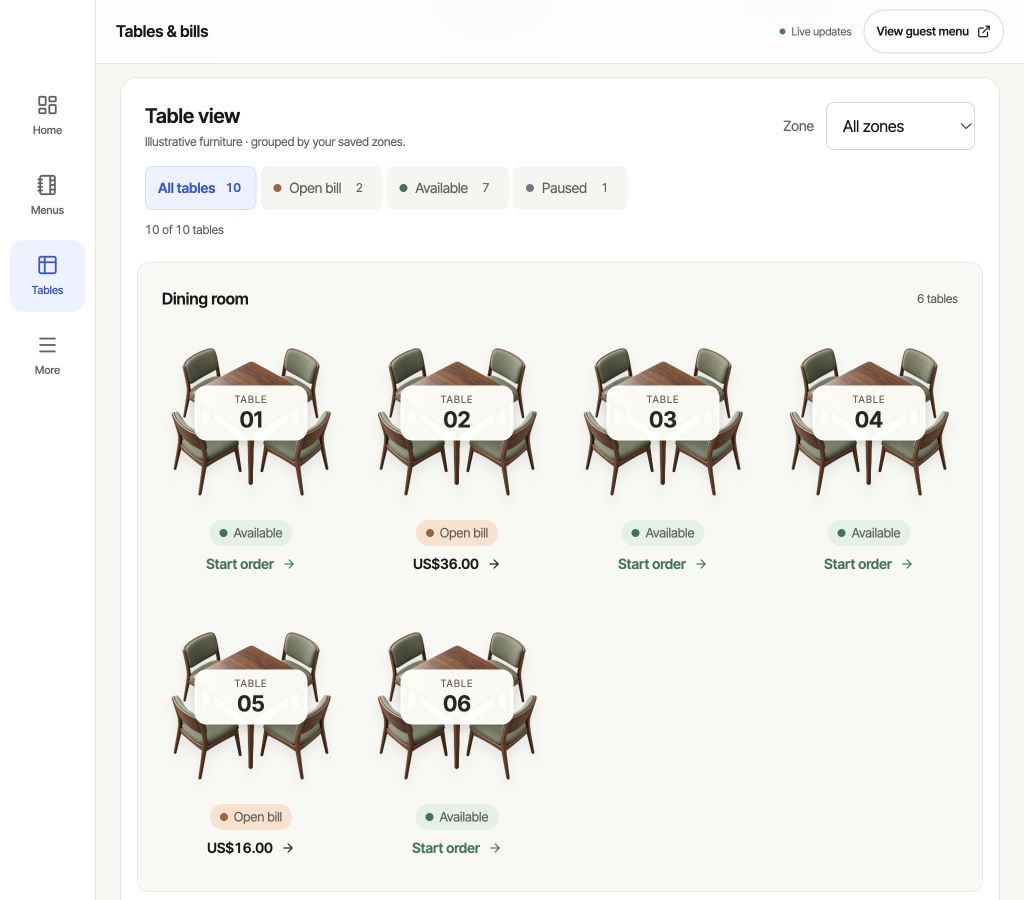
Bring guest orders and the dining room together. See your tables, open a bill and record payment when the table is ready.
Workspace sign in required. No card processor is connected.
Designed for both sides of the table
A menu that feels like you. A workspace that keeps up with service.
Your restaurant, within reach
Roomy controls, quick navigation and a clear view of your menus and orders. At the counter or on the move.
Explore the workspace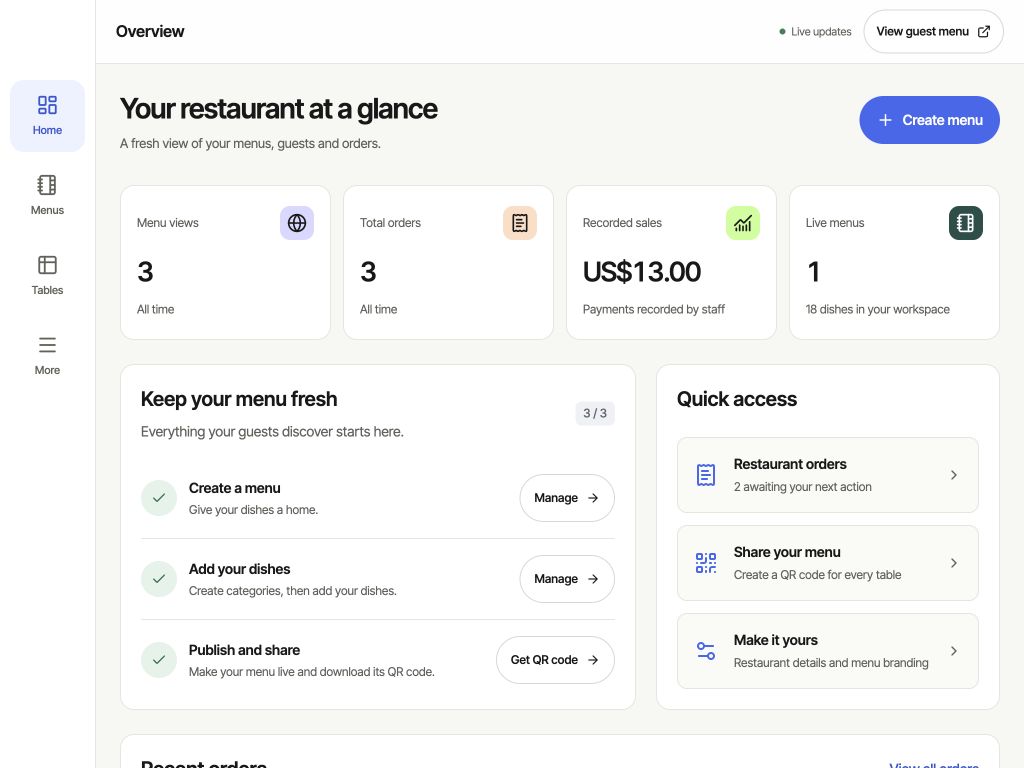
A better first scan
Your logo, three card styles, one clear invitation. Download a crisp card or print a set for the whole room.
Design your QR card
Your restaurant, your way
Create your workspace and choose QR menu only, QR ordering, or Tables & POS. Start with the service you need.
Add your dishes, photos and prices. Choose a theme and preview your menu on phone or tablet as you edit.
Publish the menu, download your QR code and bring it to the table. Your next menu update uses the same link.
Good questions. Clear answers.
DineBud is a digital menu and restaurant workspace. Choose a QR menu, QR ordering, or Tables & POS setup. Build your menu, publish it and share a QR code.
No. Guests open the published menu in their phone or tablet browser. The device needs a connection to the menu server.
Yes. Choose QR menu only for a browsing experience without a cart. QR ordering adds guest orders. Tables & POS adds the staff table and bill workflow.
Guests pay at the restaurant. DineBud records orders and, in Tables & POS mode, table bills and payments recorded by staff. No online payment processor or external POS integration is connected.
Restaurant staff enter calories, protein, fat, carbohydrates, allergens and meat origin manually. Review those details when recipes change; they are not generated automatically.
Yes. Choose your currency during setup, including USD, EUR or GBP. The live examples use USD. Check your currency before adding dishes or orders, when it becomes fixed.
Your next service starts here
Build your menu, review the details and share it when you are ready.

 The Olive Room
